TechnologySet-up
From the box to a running screen in five steps
A new player registers itself and shows a code. What to do next, in which order, and how to tell that something is missing.
Kapaso solution: AIO Hub is made by the publisher of this magazine.
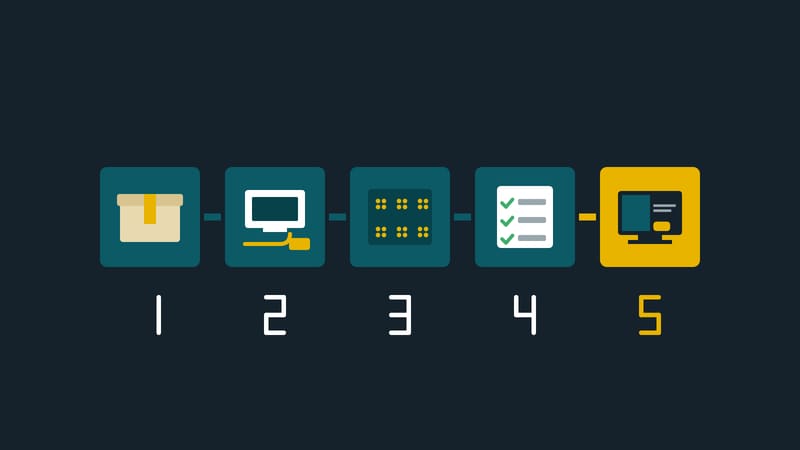
A new display has been unpacked, and someone asks: how does it get content now? With the AIO Player from Kapaso there is no installation wizard and no configuration file that has to be prepared in advance. The device registers with AIO Hub by itself. What remains is assigning it and telling it what to show.
Step 1: Connect the device
The player is connected to the screen, power and network and switched on. On the devices supplied by Kapaso the AIO Player app is preinstalled. On a device of your own, the player needs the web address of the hub; how it is entered depends on the device, and whether an existing device is suitable is clarified before purchase. After that the device contacts the hub.
Step 2: The device registers
In the hub it appears by itself in the player list under the "Unlicensed" tab. A six-digit activation code is shown on the screen. It ties the physical device to the entry in the list and is therefore the proof that the right device is being taken over. Anyone setting up several devices at the same time compares the code and does not write it down from memory.
Step 3: Assign and name
The entry gets a name that says where the device is, for example "Shop window north". The notes field on the device page is suited to the exact spot ("Till 3, left"); it is searched along with the list, so the device can later be found by its location. Settling the names in advance saves renaming later.
Step 4: Assign a licence
Without a licence the device keeps showing the code. The licence is chosen directly in the row of the player list. If a licence is full or expired, the selector gives the reason, for example "all 5 seats in use". Player licences are included in the AIO Hub packages; how many seats a package has is stated in the package itself.
Step 5: Assign a playlist
The playlist can also be chosen in the row. From then on the screen plays. If the device is in a player group that brings a playlist, it adopts it immediately, provided it has none of its own and holds a licence. For a branch with several screens that is the more convenient route: the playlist hangs on the group, not on every device.
How to read the state
The list uses three colours: green for reachable, red for unreachable or showing nothing, yellow for running but something needs doing. The filter tabs "All · Active · Offline · Unlicensed" divide the inventory so that each device is in exactly one of the four. Anyone setting up a row of devices looks at "Unlicensed" first: that is where what is not finished yet sits.
The three places where it stalls
The code stays up. The device has no licence or no playlist. Which message the screen shows then can be set in the hub: title and subtitle of the activation code, "No playlist" and "Licence expired". That helps on site, because the person at the device sees immediately which step is missing.
The device does not appear. Usually it is not connected to the network or does not know the hub's address. The first look goes to the network cable and the address, not to the hub.
The screen stays dark although everything is entered. Here categories and time windows are worth a look, because both can hold content back. If no entry matches the labels of a screen, it shows a still image, and the list flags it in yellow.
A way of working for several devices
With ten or more devices, preparation at the desk pays off: a list with location, intended name and group, plus the licences and the playlists that are already finished. Then every device is worked through without decisions.
Details of the software are at aio-hub.de, details of the devices at aio-player.de.
DS Content kompakt
The magazine’s newsletter: three articles and one practical tip, by email about every two weeks.