RetailHow-to
Head office designs, the branch just fills in price and text
Templates with fixed fields separate design from daily business. The process in four steps and the permissions it needs.
Kapaso solution: AIO Hub is made by the publisher of this magazine.
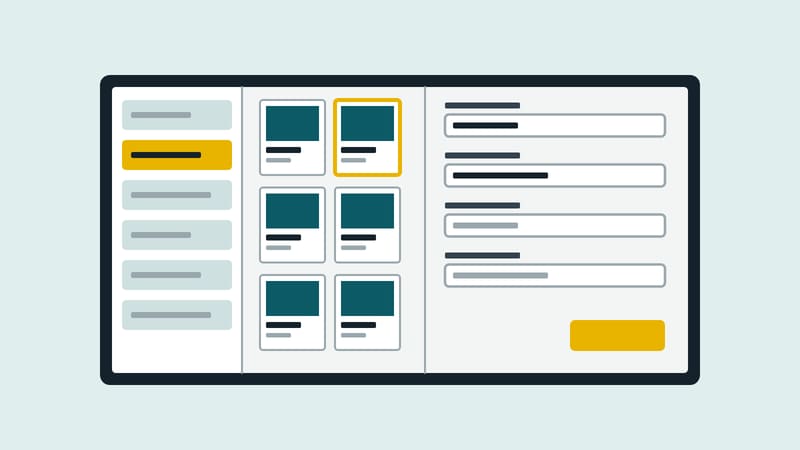
An offer screen in a branch has two sides. One is the design: typeface, colours, a place for the photo. It should look the same in every branch and rarely changes. The other is the content: this week's offer, the price, the name of the lunch dish. It changes all the time, and the person who knows it is standing in the shop, not at head office.
As long as both live in one file, every price change ends up with whoever can use the graphics software. Templates with fixed fields break that link. This example shows how it works in AIO Hub, the digital signage software made by Kapaso: a bakery with twelve branches and a weekly offer.
Step 1: Head office builds the template
The layout is created once in the editor. At that point it is decided which parts can be filled in later, such as product name, price and photo. Everything else is locked for the branch.
Step 2: The branch fills in a variant
Under the "Templates" menu item the branch manager picks the template and creates a new variant. They see a form with the fields provided, with a preview alongside. Nothing about the design changes. This works in a browser, including on a smartphone.
Step 3: The variant goes into the playlist
The finished variant sits in the media pool like an image or a video and can be added to a playlist. The playlist is assigned to one screen or to a whole group of branches.
Step 4: Next week, just swap the values
On Monday the branch opens the same variant and changes the values. The screen shows the new version the next time it checks in; how often a device asks is set per device.
Who may do what
The process only works if the permissions match it. Three settings are there for that:
- Who may fill in. The administrator releases a template to individual people, whole companies or permission groups.
- Fill in or design. For each permission group it is set whether someone only fills in templates or uses the full editor.
- Own screens, own content. Every area has two levels, view and manage. A branch can look after its own screens without seeing those of the branch next door.
Variants made by colleagues in the same company appear in a list and can be filtered: all, your own, those by colleagues, and those currently running in a playlist.
Time and place are the schedule's job
What runs when is not part of the template; it belongs to the playlist's schedule. Time slots are drawn in a calendar view: the breakfast menu in the morning, lunch at midday. The software knows the public holidays of every German federal state; a rule can specify, for example, that opening hours are shown on public holidays.
Where the limit lies
A template takes design off the branch's hands, and freedom with it. If one site needs a field the template does not have, head office has to extend it. Before building the first template it is worth asking two or three branches what really changes for them each week. It is usually fewer fields than head office assumes, and different ones.
Details of the software are at aio-hub.de.
DS Content kompakt
The magazine’s newsletter: three articles and one practical tip, by email about every two weeks.