WorkplaceAccess
Who may change the lobby screen? Keeping sign-in and permissions apart
A screen at the entrance is a public face of the company. Three questions sort out who can get at it, and three building blocks put the answers into practice.
Kapaso solution: AIO Hub is made by the publisher of this magazine.
The screen in the lobby is the first thing visitors see. What it shows is a statement by the company. Even so, access is often handled like access to the printer: one account, one password passed around the team. As long as nothing goes wrong, nobody notices. When the wrong slide runs at the entrance, nobody knows who put it there.
Order comes from answering three questions separately. AIO Hub, the digital signage software made by Kapaso, serves here as an example of how that is put into practice.
Question 1: Who is this?
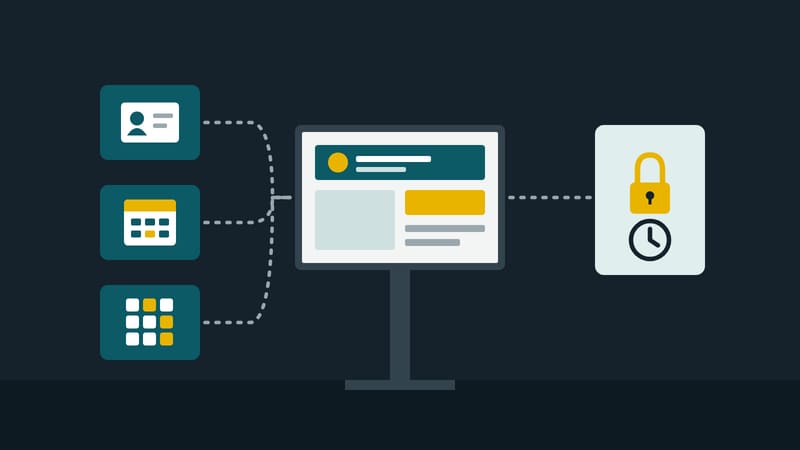
Every person gets an account of their own. There are two ways of doing that, and they complement each other:
- Signing in with the company account. The software can hand sign-in over to Microsoft, Google, Apple or Okta. Staff sign in with the account they already have. If someone leaves and their company account is blocked, they can no longer reach the screens either.
- Second factor. Anyone signing in with a user name and password can add a second factor from an authenticator app. It can be made mandatory for a whole company or for all administrators.
Sign-in with the company account is set up per company by whoever operates the installation. It is not available on the small Android box that runs the software on a company network.
Question 2: Which area may the person work in?
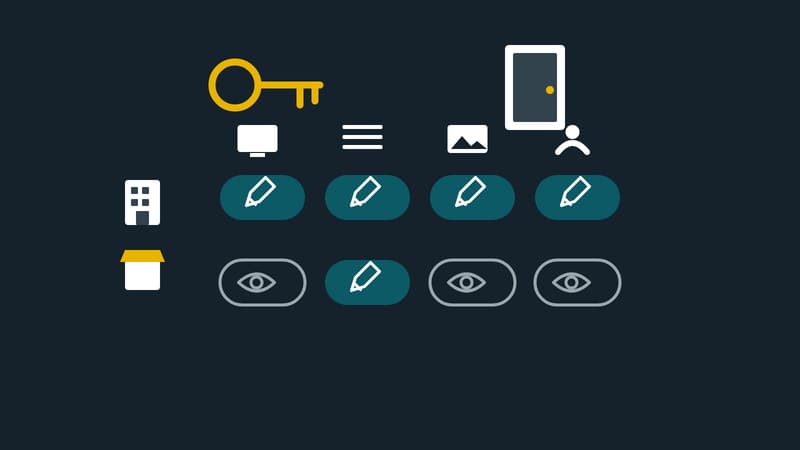
The software divides its functions into areas: screens, playlists, media, users and more. Each area has three levels: no access, view, manage. Permission groups are built from these. A common pattern:
- Head office: manages every area.
- Branch or site manager: manages screens and playlists, can only view media.
- Editorial team: manages media and playlists, has no access to devices or users.
Design has a further gradation. A group may either fill in templates only or use the full editor.
Question 3: Which individual items may they see?
Area permissions do not yet say which playlist or which screen is meant. The rule is this: every user belongs to exactly one company and sees what that company has. Every item has an owner. Individual screens, playlists, media, folders and templates can additionally be shared with a person, a permission group or a whole company.
That lets a branch look after its own screens without seeing those of the branch next door. Agencies and service providers look after several clients in one installation in the same way, each with a sign-in page of its own.
Machines are users too
If the merchandise system changes prices through an API, it needs an access key. The same applies to it as to people: one key per system, and it can be revoked at any time.
Keeping track
For sign-in with the company account, the software keeps a log of recent sign-in attempts for each company. Combined with personal accounts, that makes it possible to establish who had access and when.
Five steps to start with
- Get rid of the shared account and give every person their own.
- Define two or three permission groups, no more.
- Make the second factor mandatory for administrators.
- Check whether sign-in with the company account is possible.
- Go through the list of accounts once a year and remove what nobody needs.
The fifth step is the one most often skipped. It is the one that counts when something goes wrong.
Details of the software are at aio-hub.de.